
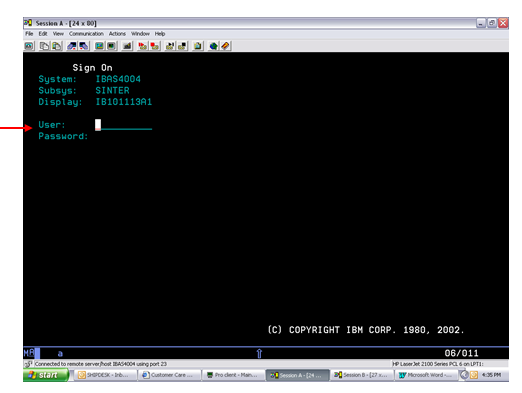
- Enter the User ID and Password
-
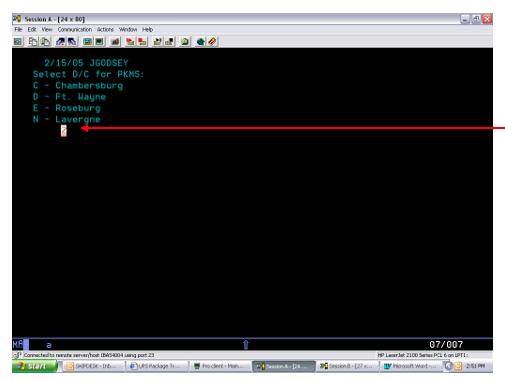
Place a “Z” in the blank to enter the PKMS Tracer System
-
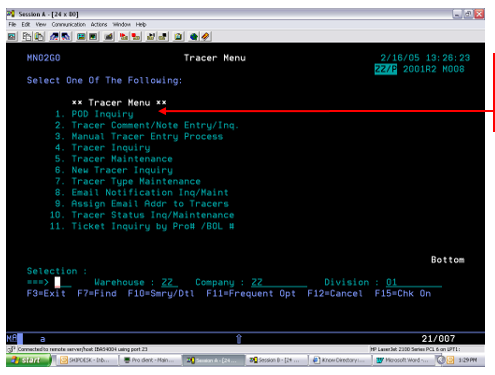
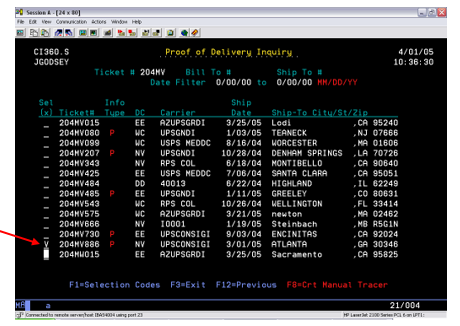
To initiate a tracer, Verbal or Written, choose option #1 (POD Inquiry)
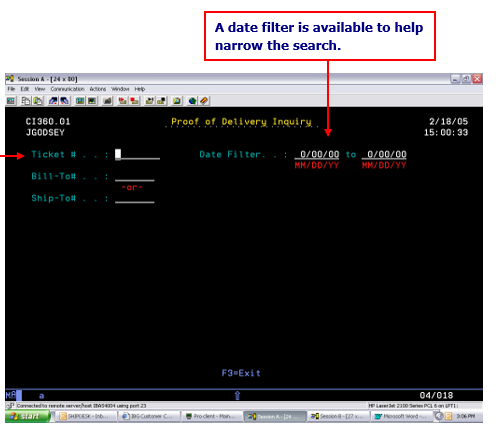
- To find the correct order to begin the tracer process, the following information can be used:
- Order Entry # (EX:204MV)
- Bill to Account
- Ship to Account
-
The order entry number is the most commonly used for Customer Service
-
To begin the Verbal tracer select the correct Ticket # (OE & Run). Place a V, U, W, H, or G in the blank besides the Ticket # - Press Enter
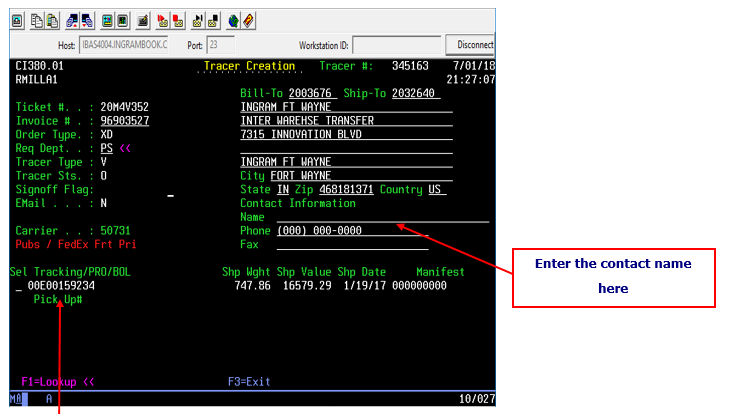
- The Tracer Creation screen will show:
- Ticket Number
- Invoice Number
- Req Dept: Enter PS
- Customer’s Address
- Customer’s Phone Number
- Available Tracking Numbers
- Method of shipping
- Ship To/Bill To
- Ticket Number
-
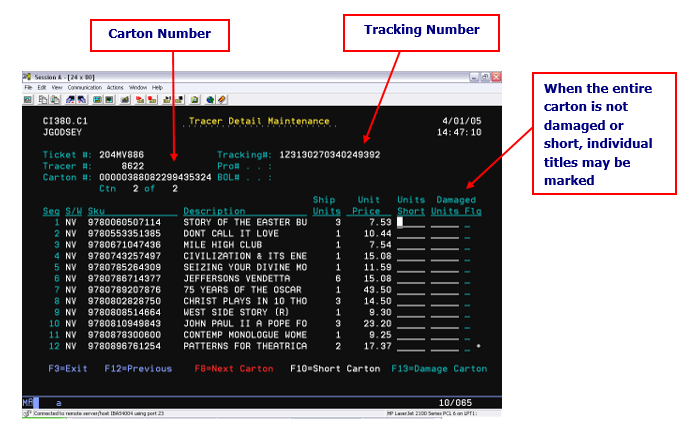
To obtain the carton detail of each carton simply place an “X” in the _ next to the tracking number and press enter
- F13 will damage out the entire carton
- F8 to go to the next available carton
- F10 will mark the entire carton as short
- The + sign indicates there are more titles in the carton. Hit Page Down and more titles will appear
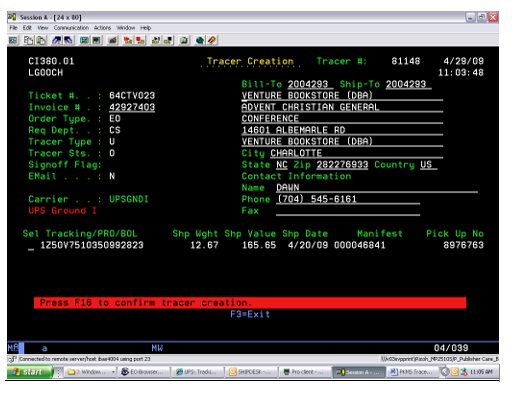
- When all of the required information is provided to the Tracer Detail screen, Press Enter
- You will then be taken back to the Tracer Creation System
- To confirm the Tracer Creation press Enter
- You will now notice a message flashing in Red “Press F16 to confirm Tracer Creation”
- Once the tracer is confirmed the next step is the Email Notification Process
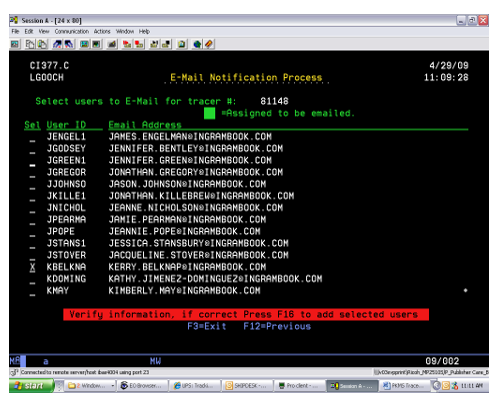
- Place an “X” in the _ to choose the contact - Press Enter
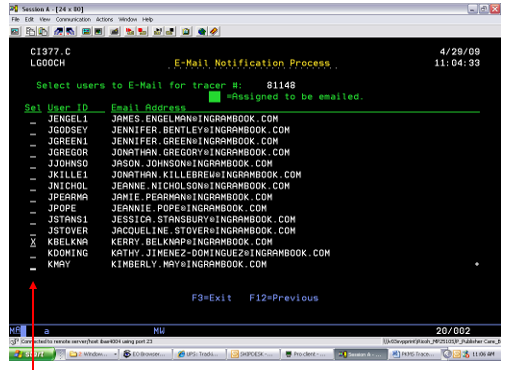
- The tracer is then assigned a Tracer Number
- The example below shows the Tracer Number 81148
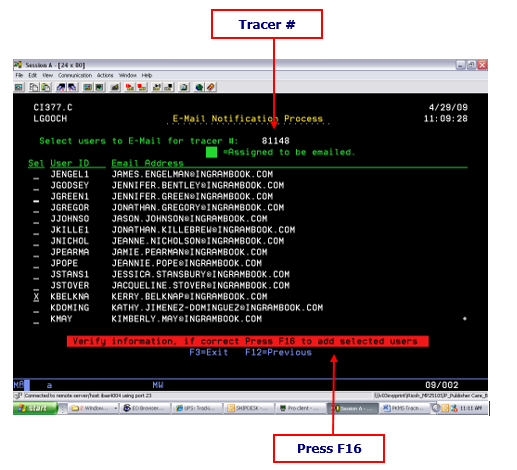
- The Email Notification screen allows the user to send an email to the appropriate contact in Transportation.
- The email notifies Transportation that there is a new tracer available, ready to be worked.
- Make sure to mark yourself to receive an email when initiating the tracer.
- This email will go in your Pending folder in the Pub Support Inbox.
Press F6 to add your comments to the tracer
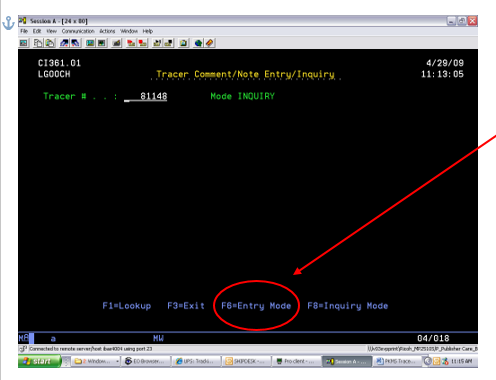
- After adding your comments press Enter
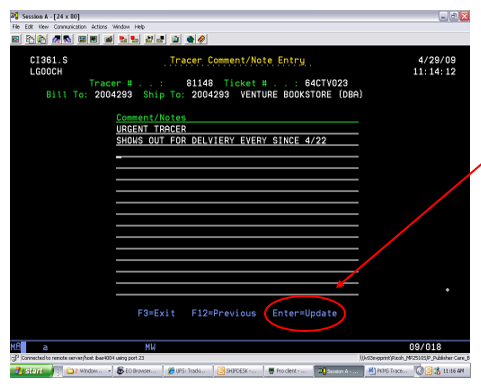
- This will take you back to the Email Notification Screen
- You may place an “X” beside the Transportation Specialist again at this point; however, this is not required
- Do NOT mark yourself for another follow-up at this point
- Press F16
- The tracer has now been created and sent to the correct Transportation Specialist
- Complete a transaction in Upstart to log the Tracer. Be sure to include the tracer #
Comments
0 comments
Please sign in to leave a comment.